Welcome to GPTVora! This is your beginner’s guide to getting the most out of our prompt library.
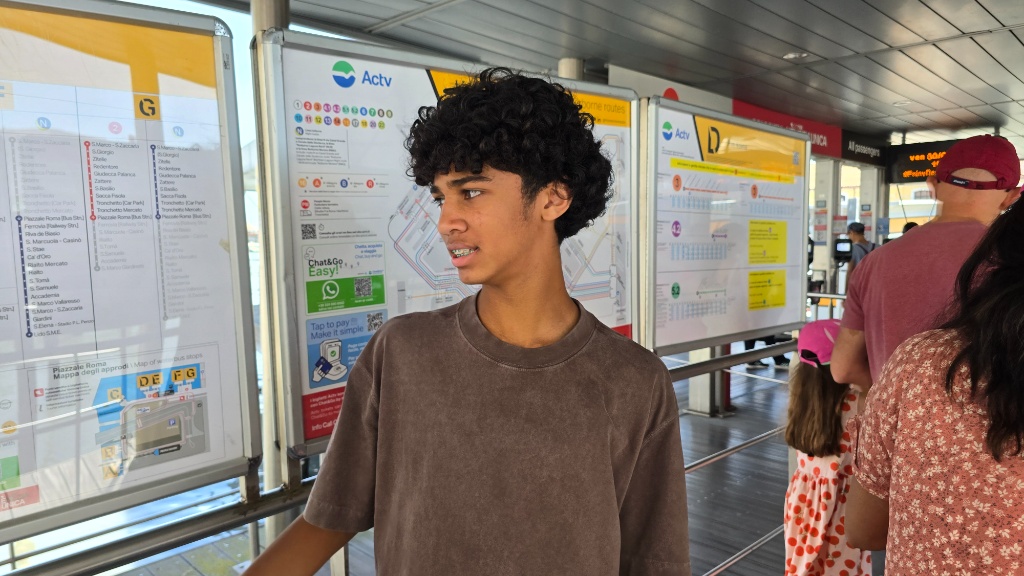
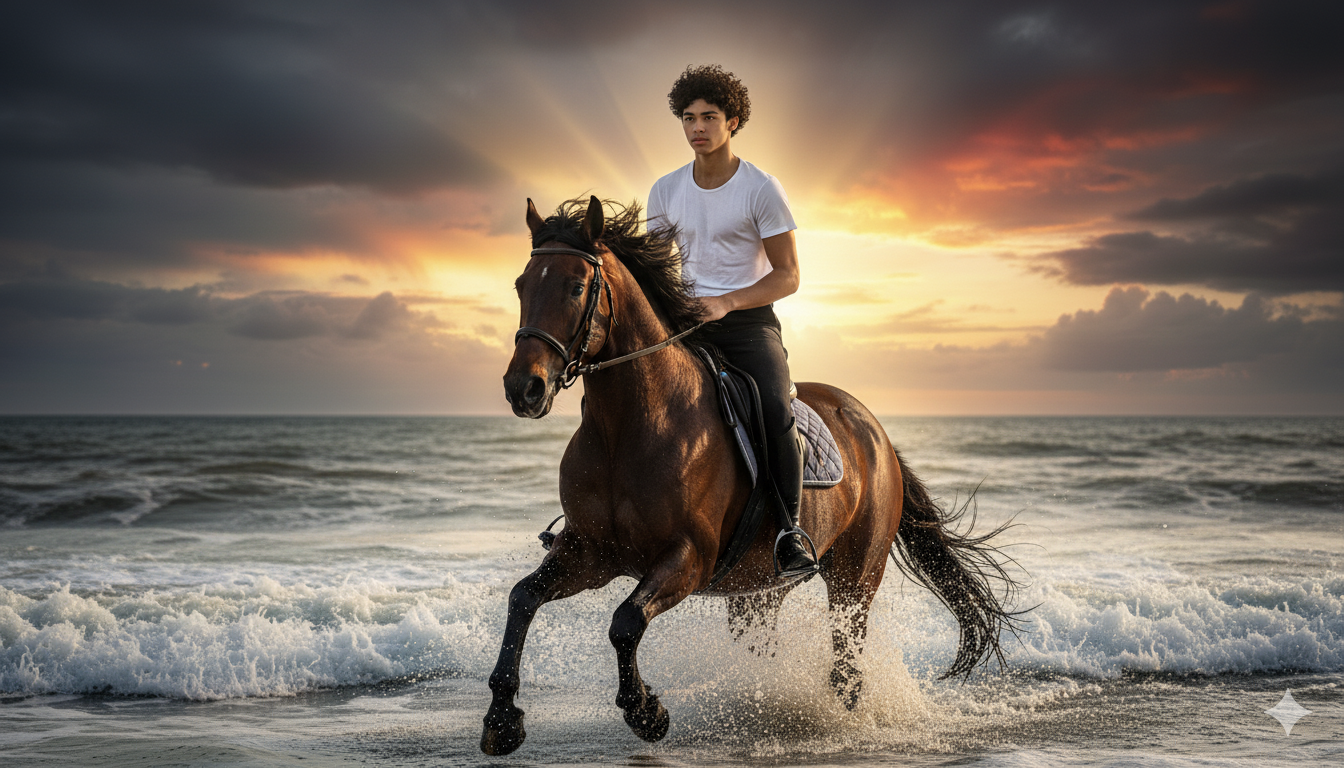
Unlike traditional prompt databases, gptvora.com doesn’t generate images out of thin air or a blank canvas. Our library is entirely specialized in Image-to-Image transformations. By utilizing our prompt formulas, you can upload your own photo as a primary subject and effortlessly change its environment, background, clothing, or artistic look with total precision.
Base Photo
Cinematic Horse Gallop Portrait
Step 1: Choose Your AI Canvas
Before you copy a prompt, you need a playground to paste it into. Pick any of the leading industry generative engines below to begin:
Midjourney
Best for hyper-realistic, highly atmospheric, and cinematic photography. Accessible via Discord or their web application.
Visit Midjourney →Google Gemini
Exceptional for lightning-fast illustrations, clean graphic layouts, and highly intuitive conversational prompting.
Visit Gemini →Microsoft Copilot
A fantastic, free entry option that excels at photorealism and rendering crisp text directly inside your images.
Visit Copilot →DALL-E 3 (via ChatGPT Plus)
The premier conversational platform for turning complex, highly descriptive storytelling into vivid visuals.
Visit ChatGPT →Step 2: Copy the Prompt
Every prompt card works the same way. Click the Copy button to instantly copy the full prompt text to your clipboard — try it right now with the sample card below.
1. Copy this sample prompt
2. Paste it here to test
Step 3: Upload Your Photo & Paste the Prompt
Now head to your chosen AI engine and follow these steps:
- Click the + icon to upload your reference photo.
- Paste your copied prompt into the same message field (Ctrl+V).
- Hit Enter and watch your photo transform.
For Best Results: Choosing Your Photo
The photo you upload matters more than anything else — it’s the foundation every prompt builds on. Keep these in mind before you upload:
- Use a solo subject. Unless you’re using a Couples prompt, upload a photo with just one clear person (or one pet) in frame — group photos confuse the AI about who to transform.
- Face the camera directly. Front-facing, well-lit photos give the clearest reference for preserving facial features and likeness.
- Keep the background simple. An uncluttered background helps the AI isolate your subject before placing them in a new scene.
- Avoid heavy filters or edits. Start from a natural, unedited photo for the most accurate transformation.
- Use a sharp, high-resolution photo. Blurry or heavily compressed images produce blurry, inaccurate results.
Prompt Formula
For anyone curious how our prompts are built, every one follows this structured anatomy: